Stand with Ukraine πŸ‡ΊπŸ‡¦
Products
Services
Blog
About Us

Pro Customization Toolkit for Jira

Customize the Jira issue view with fields, panels, tabs and actions that sit on top of your existing setup. No new Jira screens or schemes to maintain.

The Challenges with Jira Customization

Customizing Jira usually means touching global configuration. Here's what teams run into:

Rigid screens and schemes

You need one extra detail in the Jira ticket view. Jira sends you into screens, schemes and field configurations. One change can affect every project, so many admins avoid touching anything.

Per-project issue layouts

Every team wants its Jira issue layout to look different. But layouts are shared, so tickets fill up with fields most people never use, while each team still misses something important.

Custom functionality waits for developers

A small panel, a custom action, or context should not need a developer and a release. Yet it often does, and simple requests sit in a queue for weeks.

How Pro Customization Toolkit Works

1

Install Pro Customization Toolkit from the Atlassian Marketplace.

2

Open the visual builder from your Jira admin tools.

3

Add fields, panels, tabs and actions, and choose where they appear.

Pro Customization Toolkit Features

custom panel in the Jira issue view

Add custom fields, panels and tabs to the Jira issue view

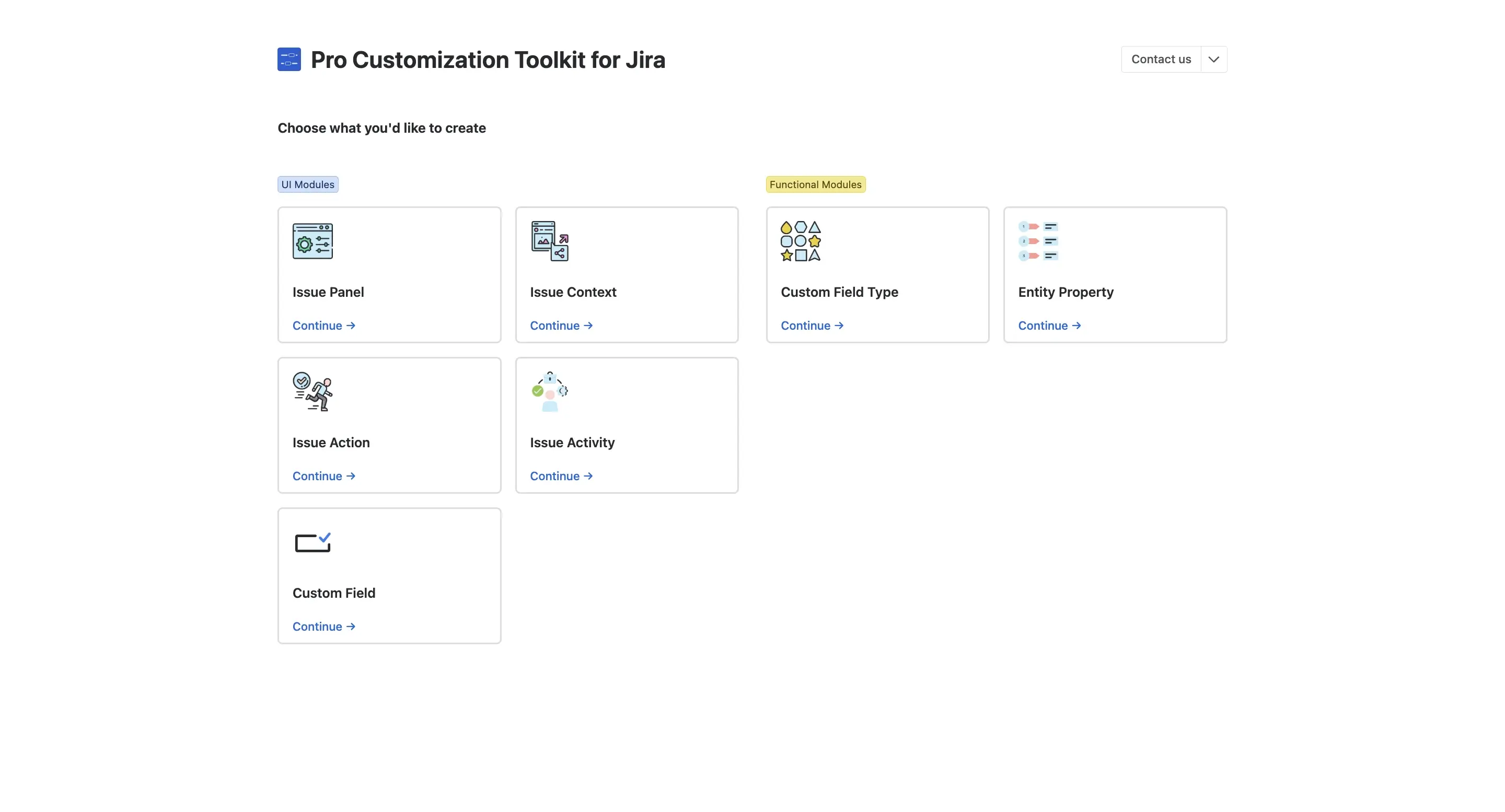
Put what your team needs right in the ticket. A panel above Activity, an item in the sidebar, a tab, or a custom field. Panels can show live details, like the ticket summary or the name of the person viewing it.
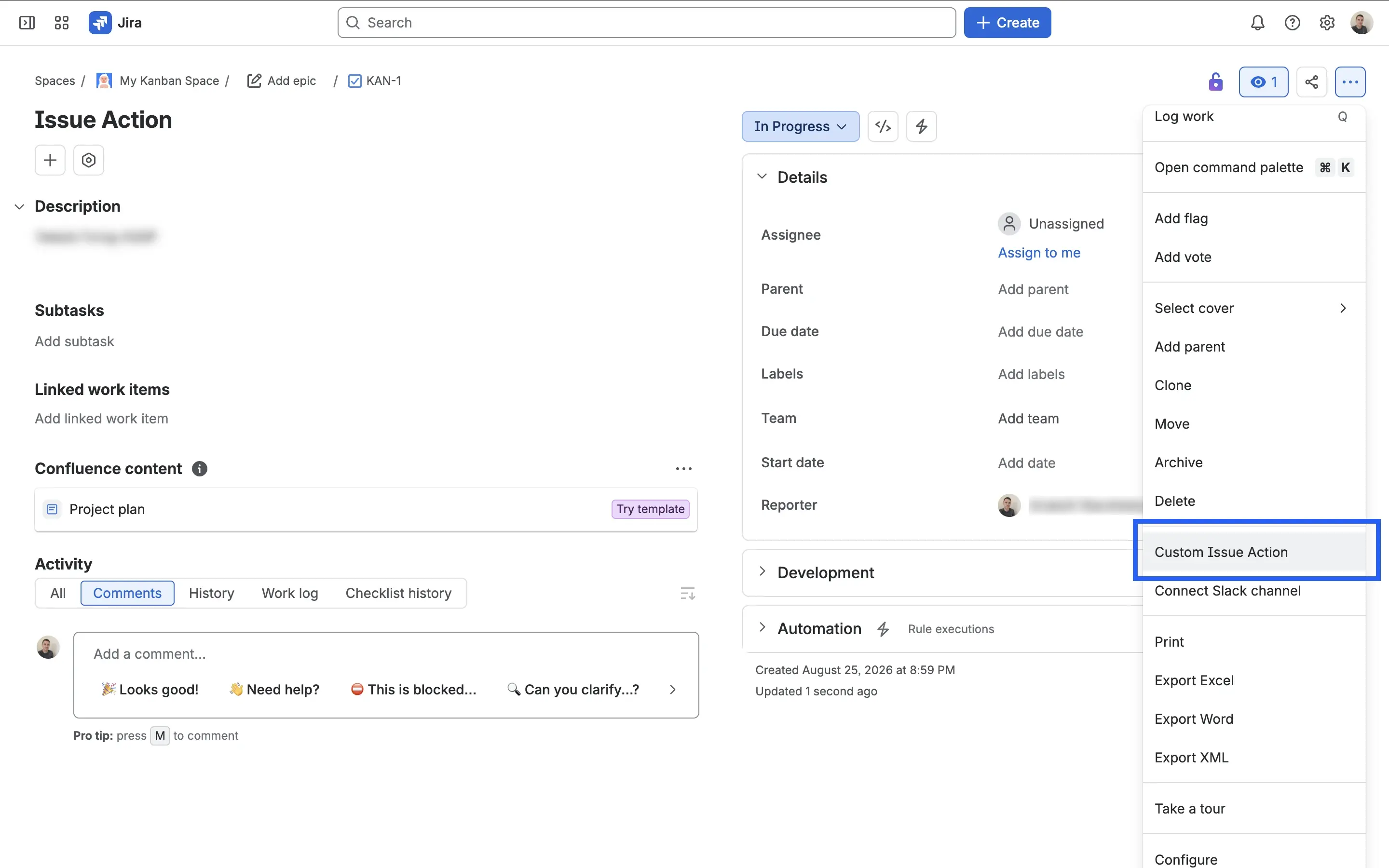
custom action in a Jira issue menu

Add actions that do the work

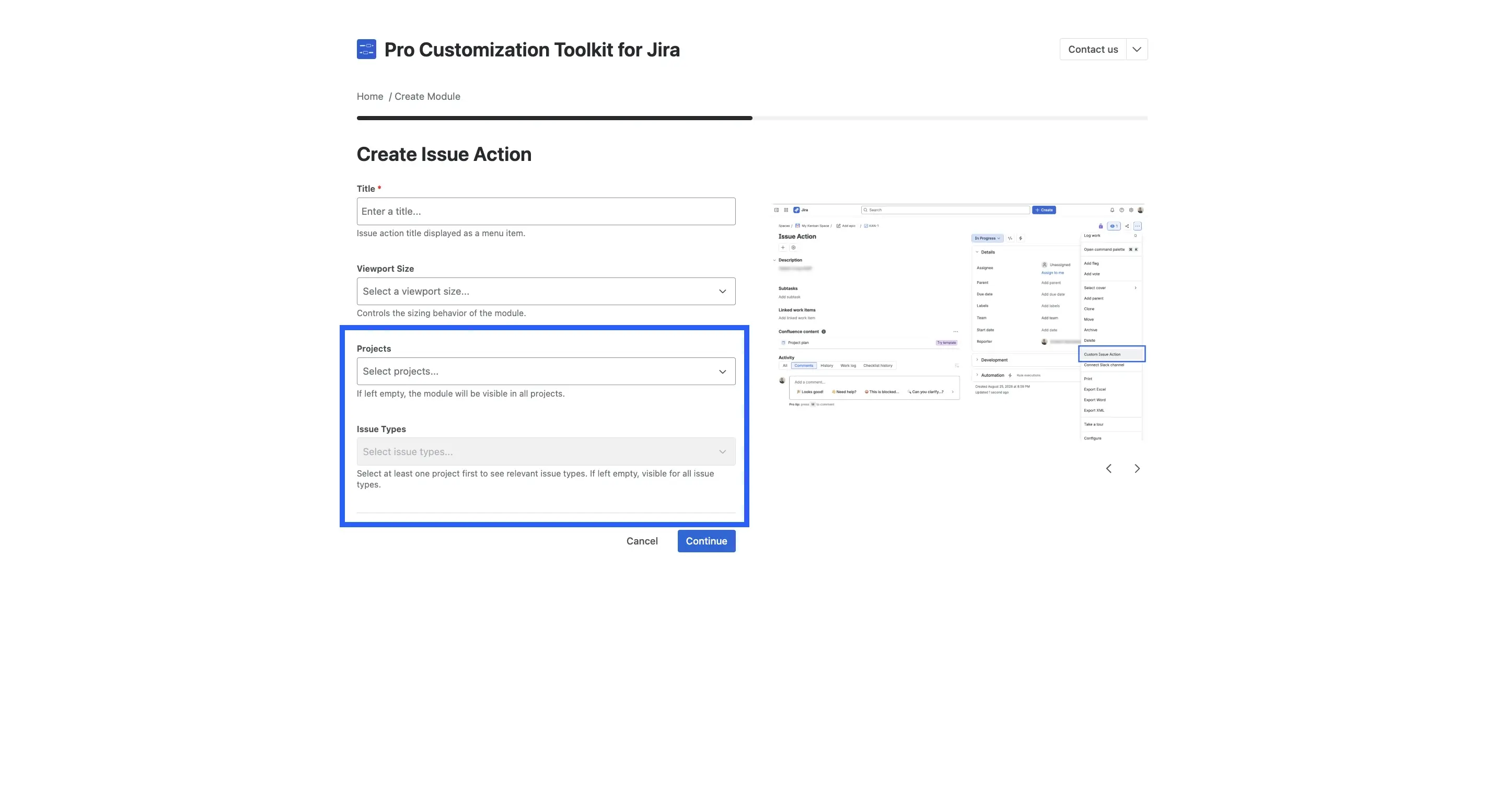
Add an entry to the issue's More actions menu. It opens your own small view for a task that belongs to this ticket.

Pro Customization Toolkit visual builder in Jira admin tools

Build everything in one visual interface

Choose the type, fill in a short form, and write your content in the built-in editor. A little HTML is enough. Search, copy, edit and remove everything from one dashboard.

conditions for showing a Pro Customization Toolkit extension in Jira

Control where and for whom extensions appear

Show each one only in the projects and issue types that need it. Switch it off without losing your setup, by hand or from a Jira Automation rule.


Advantages of Our Solution

Everything is added to existing issues, so your Jira create issue screen stays as it is

Less waiting on developers: one visual toolkit for Jira admins

Fields, panels, tabs and actions in one place

No new screens, schemes or field configuration changes

Works in the Jira issue detail view and create issue screen

Per-project and per-issue-type

Everything stays in place when you uninstall

Designed to Help Every Team to Get More Out of Jira

Jira Administrators

Add what teams ask for in minutes, not sprints. Keep every customization in one list, see who built it, and switch it off when it's no longer needed.

Project & Team Leads

Put the details your team checks every day right in the ticket. Show them only in your projects, so other teams don't get extra clutter.

Process Owners & Operations Teams

Guide people through your process inside the ticket. Add a checklist panel, a status item in the sidebar, or an action for the next step.

Atlassian Consultants

Deliver tailored issue views for clients faster. No need to build a separate custom app for every request.

FAQ

Find answers to commonly asked questions about our product

Yes, for panels, sidebar items, activity tabs and actions. They appear on top of your existing setup, so there are no new screens or schemes to maintain. You choose the projects and issue types where they show up.

No developers are needed to set it up. You fill in short forms. Panels, tabs and actions show content you write in simple HTML, so basic HTML helps. Scripts are optional.

Not for panels, sidebar items, tabs and actions. They are added by the app itself, so your current screens and field configuration stay as they are.

The Jira issue view. Panels sit above Activity, sidebar items on the right, tabs inside Activity, and actions in the More actions menu. Custom fields and custom field types are supported too.

Jira administrators. Only admins can open the builder. Everyone else simply sees the finished result in their issues, wherever your conditions allow it.

Got Questions?

Not sure if it fits your Jira? Book a demo and we'll show it on your own use case. Or write to info@wombatscorp.com. We reply fast.